Make a Macro Keypad Pass a Practice Shift
Try a small panel of reversible shortcuts, understandable labels, and a fallback layout before depending on the panel in ordinary work.
In this article
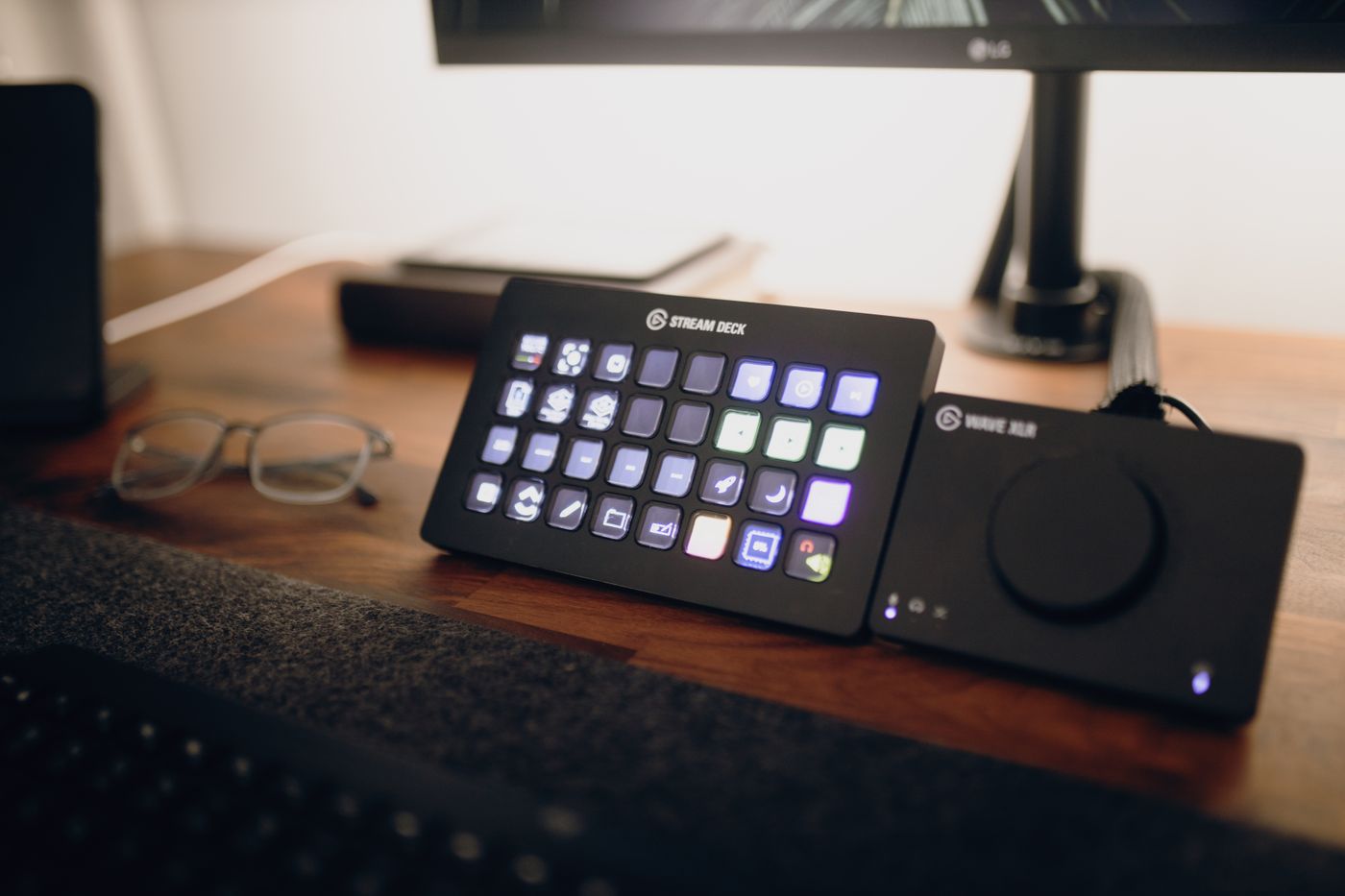
A programmable keypad occupies the space where a coaster used to sit. Its first button has a handsome icon. Its second is supposed to change what you are looking at. During a real session you press the second one, and the computer does something sensible in a different application. The keypad did exactly what it was told to do. The trouble is that you have to remember a hidden condition before you can trust a button whose whole purpose was to make work easier.
Treat the first layout as a practice panel. Give it a few reversible actions and see whether you can identify their results without focusing on the keypad itself. Use disposable material, make mistakes on purpose, and record what happens when the frontmost window changes. A successful layout will save several movements on an ordinary day and will be just as easy to stop using when the situation changes.
Pick three actions that survive a mistake
Start with a home action, a working action, and a return action. For example, open a local sample document, switch to a view in a practice application, and return to the keypad's first page. Make the first exercise entirely local. Avoid actions that send messages, run system commands, delete content, change important preferences, or type sensitive material. A wrong press should cost so little that you are comfortable learning from it. The value is in reducing ordinary effort, not in demonstrating how much one press could possibly do.
Describe each action by the result you expect to see. A label like “Open Sample” lets you recognize a successful press. A letter combination tells another person what gets sent, but it tells them relatively little about whether the expected object appeared. Keep a note of the original keyboard route alongside the button label, where it applies. If the keypad stops working or changes profile, you should still have an ordinary way to get there.
Try the existing command once without the keypad before adding it. A shortcut that already behaves unpredictably when typed on a keyboard is unlikely to become more dependable when you put it on a separate device. Confirm the application, screen, and selected object in which the action is available. Then place it on the keypad using the documented assignment feature for the model. Elgato's instructions for Stream Deck hotkeys are one example. Other devices may store their configuration on the computer, in the keypad, or somewhere else.
Learn what sees the keystroke
For each button that sends a local shortcut, put a harmless practice application in front and try it. Move another window in front and try again. A shortcut sent to the foreground app may be interpreted differently depending on what is active. One app can change a view. A second can perform a text-editing function. A third might appear to do nothing. That distinction determines whether the button belongs on a general panel or on a page whose context is shown clearly.
Test several ways of arriving at the expected state. Select a blank area of the desired application and press the button. Then try with a text field active, a menu open, and a different document tab selected, as applicable. Application controls and platform shortcuts can compete for the same gesture. You do not need to remove those existing defaults to judge the keypad. If the button is only useful in a specific view, give it an accurate label or choose a simpler action for the main panel. Predictability is more valuable than a dense layout of nearly useful commands.
Some keypads support changing profiles in response to the active application. That can reduce clutter, although it also makes the panel's visible state an important part of the decision. If you use automatic profiles, switch between two familiar apps and look at how long it takes the display to settle. Test what happens after opening a separate dialog or returning from the desktop. Keep a route back to a neutral panel. If you cannot tell which layout is active in the moments when you tend to reach for it, start with explicit pages and a visible home button.
Make the labels earn their space
Use a label that describes the destination or resulting view and fits at the size the keypad actually displays. An icon alone can work if it has one natural meaning in your setup. When icons are similar, add a short word. A useful practice is to turn away for a few seconds, look back, and find the correct button without hovering or reading an instruction sheet. Make the essential labels distinguishable in the room's usual light. If color is meaningful, include another visual or positional cue so the mapping does not depend on color alone.
Check the arrangement by touch as far as it is safe and useful. One important button can live in a consistent corner, separated from the others. Two frequently used controls may benefit from a gap or a different row. Avoid putting actions next to each other just because their symbols look related. Put the actions near one another when you genuinely use them in the same context and can easily recognize a mistaken press. A permanent home position lets your hand return to a known state after you explore another page.
Read the labels from your working seat with the device where you intend to keep it. A panel turned toward your dominant hand may give you a better angle and interfere with something else, such as the space you use for the pointer. Change its physical position before adding many layers of configuration. A simple placement change can make the device clear enough to use once a minute instead of something you have to turn each time.
Rehearse a mistake and the recovery
Put aside any work that matters and open disposable samples. Press the correct button one time, identify the outcome, and restore where you started. Then deliberately choose the neighboring button. You should be able to explain the effect and return without other operations being triggered. A setup with simple actions is easier to recover than one that sends a long chain of keystrokes before you see any feedback. Prefer single actions when they do the job. Keep the traditional keyboard and mouse routes available as the fallback.
Next disconnect or stop using the device during a practice task, following its own guidance. Can you finish the task through the ordinary application controls? If not, the keypad has hidden an important action instead of just making it convenient. The practice shift should reveal what needs a second route. Document any software dependency, profile selection, or background application you need in order for the keypad to behave as expected. Leave other people's accessibility controls intact on a shared machine.
If you make several changes, export a local configuration through a supported method where available. Choose a recognizable name and date. Keep restoring the regular layout separate from any experiment you run tomorrow. A configuration copied from someone else may include actions, plug-ins, or destinations you did not intend. Review each assignment before testing it, or start with your own small local layout so its behavior is already clear.
Keep the panel that continues to help
Run one normal short session. Make a tick on paper whenever the keypad saves a trip through a menu and whenever it makes you stop to check the active profile. An honest little count reveals whether a button earns its place. Keep the controls whose results you can anticipate and remove any that have to be explained again every day. If you repeatedly use a button only in one task, place it on that task's page or leave it as an ordinary keyboard shortcut.
Return to the practice setup after an application update or a computer change. Test the easy mistakes again. The app may interpret a shortcut differently when it adds a new view, and a profile may follow a different program name after a move. Use the results you can observe rather than assuming the label remained an accurate description. A working practice panel stays small enough that reviewing it is cheaper than recovering from a mistake.
A useful pad makes the next action obvious at two moments: when you decide to press it and when you see what happened. If you can keep that relationship clear with three simple buttons, expansion becomes an informed decision. If three buttons already make a session easier, the empty keys are still part of a successful layout.
If several people share the panel, leave one key logically neutral, or reserve the initial page for actions everyone uses. An adjacent paper note can say which profile is active and how to leave it. Practice returning to that page after an interruption. On a device with tiny displays that change as you work, a stable physical landmark can be more useful than remembering the icon you saw ten seconds ago.
Product reference
Elgato's documentation shows how one product line assigns single hotkeys and switches profiles. Consult the relevant instructions for your device before setting up a panel.